Mirror App - Makeup Mirror
- 4.7
- Rating
- 1.00M
- Installs
- Free
- Price
 Analysis by App-foxy
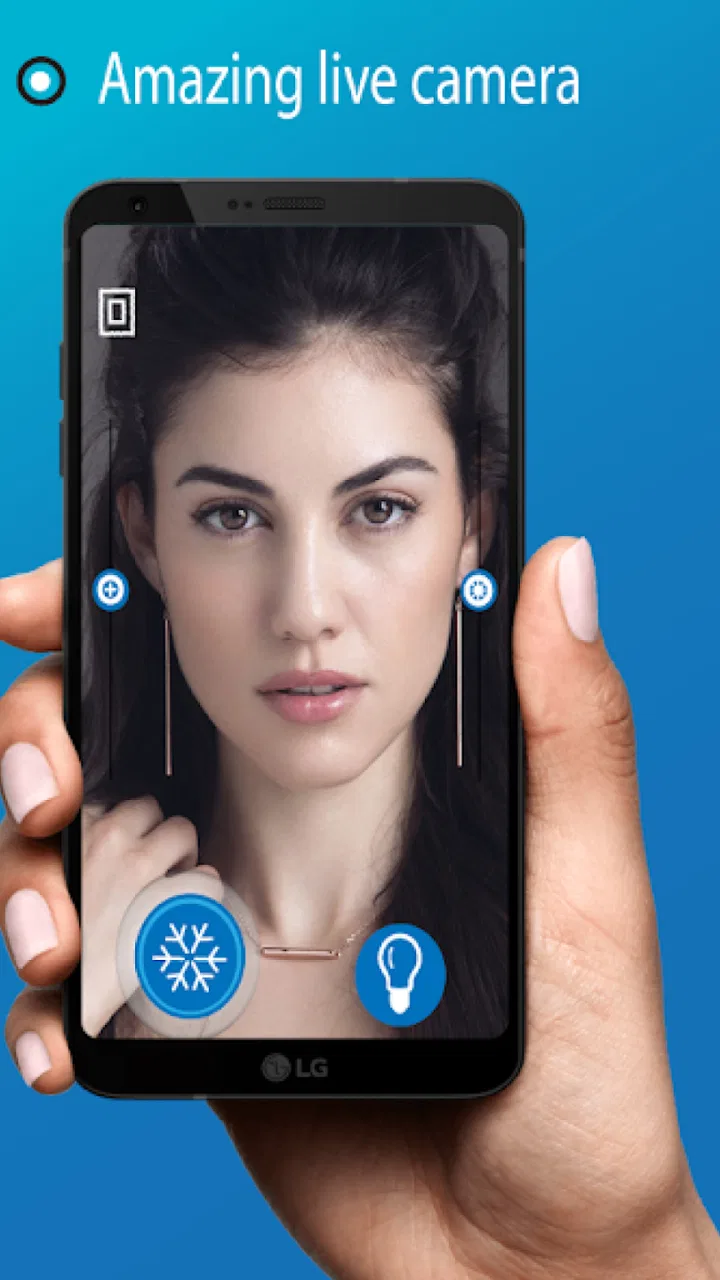
I like the idea behind Mirror App - Makeup Mirror because it solves a very ordinary problem with something many people already carry: a phone. Developed by o16i Apps, this free beauty app turns the screen into a practical mirror, with image capture, brightness control, and a magnifying view available when I need a closer look. It is simple rather than glamorous, and that is mostly its strength.
In my experience, the app makes the most sense as a backup mirror for quick grooming, makeup checks, skincare routines, or any moment when a wall mirror is unavailable. It is not trying to replace a good physical mirror in every situation. The phone screen is small, the camera and lighting conditions still matter, and the result depends heavily on how the device is held. Still, the combination of a live reflection, brightness adjustment, capture option, and magnification gives it more practical value than a basic camera preview.
The app is listed in the Beauty category and is free to start. It is suitable for Everyone, runs on Android 7.0 and later, and its current version is 1.2.1. It has reached over one million installs and holds a 4.7 average from around 8.9 thousand ratings, which suggests that its straightforward purpose is connecting with a large number of people. Optional in-app purchases range from $0.99 to $99.99 per item, so I would still check the purchase screen carefully before confirming anything.
You May Also Like

 Blood Strike: 2.5 Anniversary
Blood Strike’s Loadouts Turn Every Drop Into a Tactical Gamble
A close look at Blood Strike’s custom loadouts: how fast access to signature weapons reshapes its battle royale rhythm, rewards preparation, and narrows the gap between fights.

 Pandora - Music & Podcasts
Pandora’s Music Is Easy to Start, but Harder to Recover
Pandora’s strength is its low-effort path from a seed to a station. Its weak spot is how much confidence it asks you to place in connection, setup, and quiet recovery.

 8 Ball Pool
 Is Built on Rivalries, Rematches, and Routine
A close look at the rivalries, rematches, shared routines, and unanswered safety questions that turn a quick pool match into a persistent mobile community.

 Samsung Music
’s Quiet Strength Is Playing What You Already Own
Its reach comes less from spectacle than from dependable access to a personal library. That simplicity is both the app’s strongest retention engine and its ceiling.

 AccuWeather: Weather Radar
AccuWeather Review: A Quick, Clear Forecast for Everyday Decisions
For everyday plans, the best forecast is the one you can understand quickly. AccuWeather makes rain timing, radar, and local conditions easy to act on, with a few trade-offs.

 Hill Climb Racing
Why Hill Climb Racing Still Turns Crashes Into One More Run
A tiny car, a bumpy hill and one more upgrade: Hill Climb Racing keeps resurfacing because its simple chaos makes every near-miss feel personal.
More From Our News Desk



Getting past the moments where a phone mirror can feel awkward
I find it easier to judge a phone mirror when I treat it as a handheld tool rather than expecting it to behave like a fixed glass one. A steady grip, a comfortable viewing distance, and a quick check of the room light can make the experience feel much more natural. With that practical setup in mind, the next section looks at how to get dependable results from its controls.
The first obstacle is usually positioning, not the app
The most common frustration with a phone mirror is that the user expects it to behave like a fixed bathroom mirror. It does not. I have to hold the phone at a comfortable angle, keep the front-facing view aligned with my face, and avoid covering the camera or screen with my hand. If the image appears dark, tilted, or strangely framed, moving the device a few centimeters often helps more than repeatedly tapping the interface.
This matters especially during makeup application. A phone held too close can make one side of the face dominate the view, while a phone held too far away reduces the useful detail. I get better results by starting at arm’s length, adjusting the angle until my face is centered, and only then using the magnifying view for a specific area. That sequence feels less tiring than trying to work close up from the beginning.
The brightness control is also easy to misunderstand. It can make the display easier to see, but it cannot create flattering or accurate room lighting. A bright screen may help when the surroundings are dim, yet it can also make the face look different from how it appears in daylight. For foundation, concealer, or color matching, I would treat the app as a checking tool rather than the final judge.
A useful setup check before blaming the mirror
Before using it for a detailed task, I recommend a quick setup routine. Clean the front camera area, wipe away fingerprints from the screen, and hold the phone where the camera has a clear view. Then raise the screen brightness only as much as needed. Excessive brightness can be uncomfortable and may make small details harder to assess because the surrounding image feels washed out.
I also prefer testing the app in the same lighting where I plan to finish my routine. If I prepare near a window, I check my appearance there rather than under a single warm bulb. This is one of the less obvious trade-offs of a phone mirror: the app can show my face clearly, but it cannot correct the color cast created by the room.
If the image does not respond as expected, I first close other camera-heavy apps and reopen the mirror. I make sure the phone is not being used in a way that leaves the camera occupied elsewhere. A simple restart of the app is a sensible first step when the preview freezes, appears blank, or stops reacting to controls. I would avoid changing unrelated phone settings until these basic checks are complete.
How I use the capture option without turning the app into a photo editor
The capture function is useful when I want to record a quick reference, compare two makeup arrangements, or inspect a detail after moving the phone away from my face. I find it most helpful as part of a short workflow: check the live image, adjust one thing, capture the result, and then compare it under the same lighting. That keeps the comparison meaningful.
I would not treat a captured image as proof that a product color will look identical in every setting. The phone’s camera processing and the room’s light can influence the result. A photo can help me notice uneven eyeliner or a missed patch of foundation, but it is not a substitute for looking at the face in person or checking under natural light.
There is another practical advantage to capturing an image: it lets me inspect a detail without holding the phone in an uncomfortable position for several minutes. For example, I can take a quick picture, use the magnifying view when checking a small area, and then put the phone down. That is easier on the wrist than keeping the device close while trying to work carefully.
Recovering a workflow when the view or controls stop cooperating
When the mirror view feels stuck, I would return to the simplest possible state. I close the app, reopen it, and hold the phone upright with the camera unobstructed. If the preview still looks wrong, I check whether the entire phone camera is behaving normally in another camera application. This comparison helps separate an app-specific problem from a broader device issue.
If the live image works but the screen seems too dark, I adjust the app’s brightness control first and then the phone’s display brightness if necessary. Changing both at once makes it difficult to know what helped. I prefer small adjustments because a very bright display can hide subtle differences in texture and color.
For the magnifying view, I use it after the basic reflection is stable. If I activate a closer view while the phone is still moving, the result can feel less useful simply because my face is no longer in a steady position. Resting an elbow on a table or holding the phone with both hands can make a surprisingly large difference. This is not a hidden technical feature; it is a better way to use a handheld mirror.
Capture problems deserve the same calm approach. I first confirm that the live view is visible, then try one capture without rapidly repeating the command. If the app does not respond, I restart it and repeat the setup check. I would also leave enough free space on the device for normal image saving, since a full phone can cause trouble for many camera-related tasks even when the mirror view itself is working.
When the phone, room, or camera is really the cause
Not every poor result comes from Mirror App - Makeup Mirror. A scratched camera cover, a dirty lens, a damaged front camera, or aggressive display settings can make the experience look faulty. If other camera applications also show a blurry or distorted image, the phone deserves attention before the app does.
Lighting is another major factor. A single light above the head creates shadows that no brightness slider can remove. I get a more useful reflection by facing a broad, soft light source rather than standing directly beneath one. This is particularly important for eyebrow shaping and complexion checks, where shadows can exaggerate unevenness.
Device age can affect comfort too. On a smaller screen, the mirror view may be perfectly functional but less convenient for detailed work. On a phone with a lower-quality front camera, the magnified image may reveal less than I expect. In those cases, a physical magnifying mirror is the better choice for precision, while this app remains handy for quick checks away from home.
Battery and heat are worth considering during longer routines. Keeping the display bright and the camera active can be demanding, so I would avoid using it for an extended session when the phone is already low on power. If the phone becomes unusually warm, I would stop, let it cool, and try again later rather than assuming the app needs constant troubleshooting.
Who will appreciate it, and who should choose something else
This app is a good fit for someone who wants a mirror in a handbag, at a desk, in a shared room, or while traveling light. It is also useful for quick appearance checks before a meeting or dinner, especially when a normal mirror is occupied. The capture option adds value for people who like to compare a look from a little farther away instead of staring at the live preview.
I think it works particularly well for short, repeatable routines. I can open it, adjust brightness, check my face, use magnification for one small detail, and close it. That focused workflow suits the app better than treating it as a complete beauty studio. Its strength is convenience, not a long list of creative tools.
I would skip it as a primary solution if I need a large, color-accurate mirror for professional makeup, hair styling, or detailed skincare inspection. A physical mirror with suitable lighting gives a more natural sense of distance and does not depend on battery life, camera condition, or screen size. Someone who wants filters, retouching, tutorials, or product recommendations should also look for a broader beauty application rather than expecting those functions here.
The purchase range is another reason to stay attentive. The app itself is free, but optional items can cost from $0.99 up to $99.99 each. I would use the free experience first and read every purchase prompt before accepting it. For a utility that I may open only for a few minutes, paying should make sense only if the specific extra is genuinely useful to my routine.
My everyday test: a quick check before leaving home
A realistic use case is getting ready in a room without a full-length or well-lit mirror. I place the phone at a comfortable distance, open the app, and use the brightness control until the display is easy to read without becoming glaring. I check the overall look first, then use the magnifying view for eyeliner, brows, or a small area that needs attention.
After making an adjustment, I capture one image rather than repeatedly switching between live viewing and a separate camera app. I compare the result in the same light, then step away from the phone to see whether the change still looks balanced. That last step is important: magnification can encourage me to focus on tiny imperfections that are not noticeable at normal conversational distance.
If the image looks unusually dark, I move toward a window or another broad light source before increasing brightness further. If the preview remains frozen, I restart the app and check the phone camera. This routine keeps the troubleshooting practical and prevents me from wasting time changing settings that have nothing to do with the actual problem.
What I think after using it as a utility rather than a novelty
The appeal of this app is its narrow focus. It does not need a complicated learning curve to be useful. The live mirror view handles the basic job, brightness control helps in less-than-ideal rooms, magnification supports small corrections, and capture gives me a way to review a result without holding the phone in front of my face continuously.
Its limitations are equally clear. The phone remains a small, handheld screen, and the camera cannot guarantee natural color or perfect detail. The app cannot improve poor room lighting, repair a damaged camera, or replace the perspective of a proper mirror. These are not reasons to dismiss it; they simply define where it belongs in my routine.
My practical verdict is that Mirror App - Makeup Mirror is worth trying if I want a free, portable beauty mirror for quick checks. The strong 4.7 average and more than one million installs fit my experience of a focused tool that does its central job without much fuss. I would keep a physical mirror for serious makeup work, but I would happily keep this app available for travel, touch-ups, and those everyday moments when the nearest mirror is not nearby.
FAQs for Mirror App - Makeup Mirror
01What is Mirror App - Makeup Mirror and how does it work?
Mirror App - Makeup Mirror transforms your smartphone into a virtual mirror, utilizing your front camera to provide a clear reflection. It features zoom, brightness adjustment, and freeze frame options to enhance your viewing experience. This app is perfect for quick touch-ups on the go, ensuring you always look your best.
02Is Mirror App - Makeup Mirror free to download and use?
Yes, the Mirror App - Makeup Mirror is available for free on both Android and iOS platforms. However, it may offer in-app purchases or advertisements to unlock additional features, such as advanced lighting controls or ad-free experiences. Check your app store for more details on pricing.
03Does Mirror App - Makeup Mirror require an internet connection?
No, Mirror App - Makeup Mirror does not require an internet connection to function. The app uses your device's built-in camera to provide a mirror-like experience, making it convenient for use anywhere, anytime, without worrying about data usage or connectivity issues.
04What are the key features of Mirror App - Makeup Mirror?
The app offers several useful features, including zoom functionality, brightness adjustment, and a freeze frame option to hold your image still. These tools help you apply makeup more effectively or check your appearance with greater precision, making it a handy tool for daily use.
05Is Mirror App - Makeup Mirror compatible with all devices?
Mirror App - Makeup Mirror is designed to be compatible with most Android and iOS devices equipped with a front-facing camera. However, older devices might not support all features, such as high-definition reflections or advanced lighting adjustments, so check compatibility before downloading.
Pros
- High-definition reflection quality.
- User-friendly interface with easy controls.
- Adjustable brightness and zoom features.
- No ads in the premium version.
- Quick launch for on-the-go use.
Cons
- Free version includes annoying ads.
- Limited features without premium upgrade.
- Occasional lag on older devices.
- No built-in lighting options.
- Drains battery quickly with prolonged use.

Mirror App - Makeup Mirror
Gallery